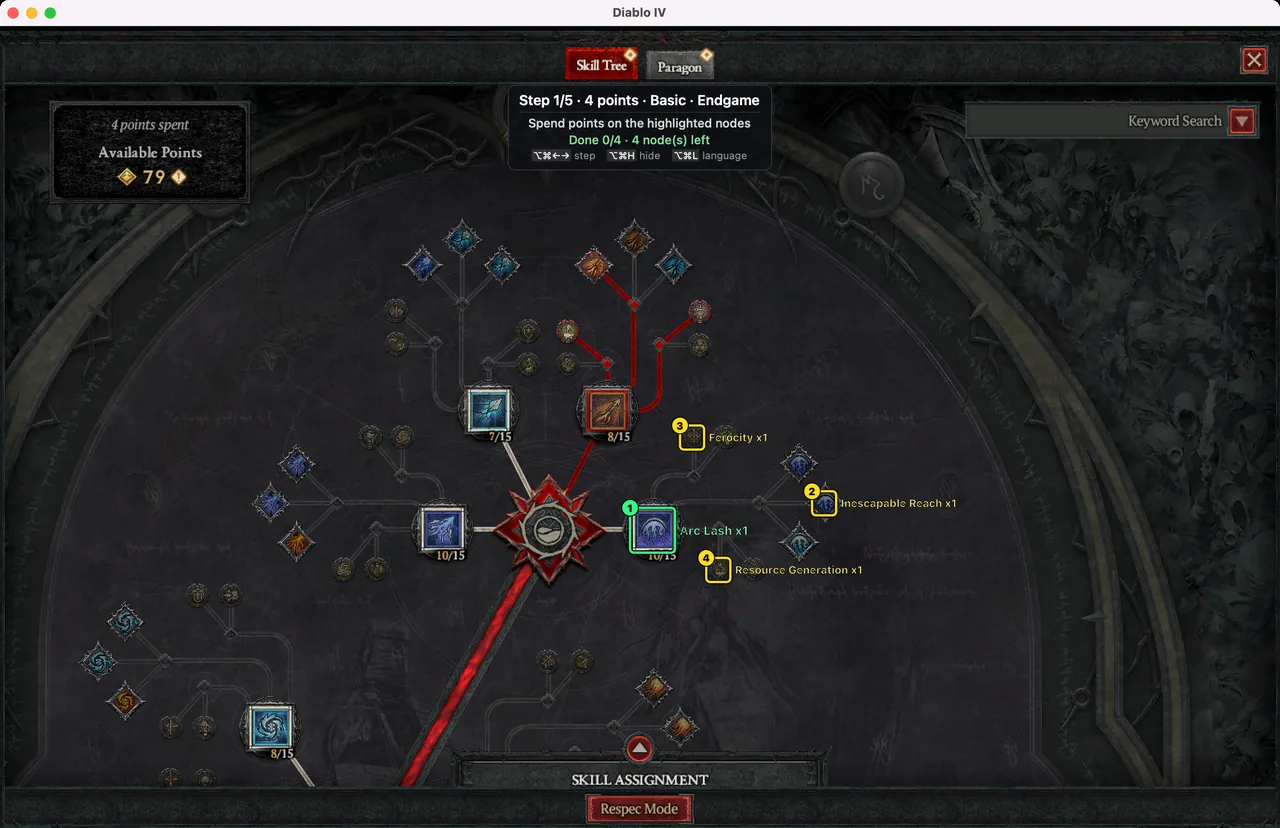
GuideBoards · rotation · gates · glyphs
Paragon board guide: attaching boards, ‘Rotate Board’ presses and glyphs
On the Paragon board, which board you attach, at which rotation and to which gate comes first. D4 Builder walks through that step by step, and in the game's board preview it tells you whether the board you picked is right and how many times to press ‘Rotate Board’.
How the Paragon guide works
Paragon steps follow the Paragon steps the build site defines. Paragon 1/4 · 21 nodes
in the panel means the first of that build's four Paragon steps. A build with a single (final) layout is split into one page per board.
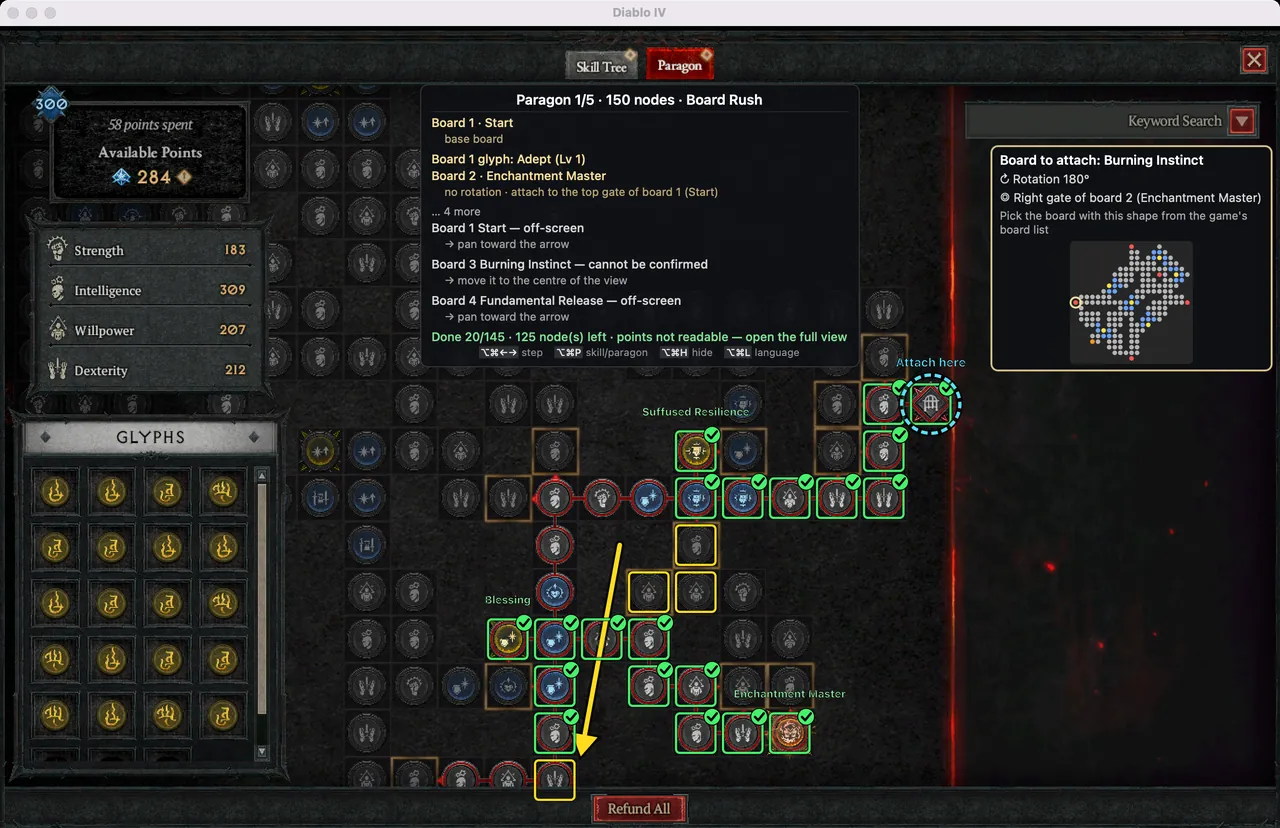
Each step starts with the board instructions at the top of the panel, followed by boxes on the nodes to take in the game. A board instruction looks like this:
rotate 180° · attach to the top gate of board 1 (Start)
Board 2 glyph: (glyph name) (Lv L)
Up to three instruction lines are shown at a time; the rest is shortened to … N more
. Switch from the skill tree guide to the Paragon guide with ⌥⌘P; until the Paragon screen is open, the panel says Open the Paragon board (locating…)
.
Reading the marks
Every mark drawn over the game has a fixed meaning. Boxes have a dark outline so they stay visible on bright boards.
| Mark | Meaning |
|---|---|
| Yellow box | A normal or magic node to take in this step |
| Green box + label | A rare or legendary node, or a glyph socket, to take in this step |
| Green box + check | A node recognised as taken; legendary nodes are checked when the app is sure |
| Red box + ✕ | A node to refund (label Refund: name) |
| Magenta dashes + ✕ badge | A node that is taken but not in this build; the panel says N node(s) not in this build → refund them in game |
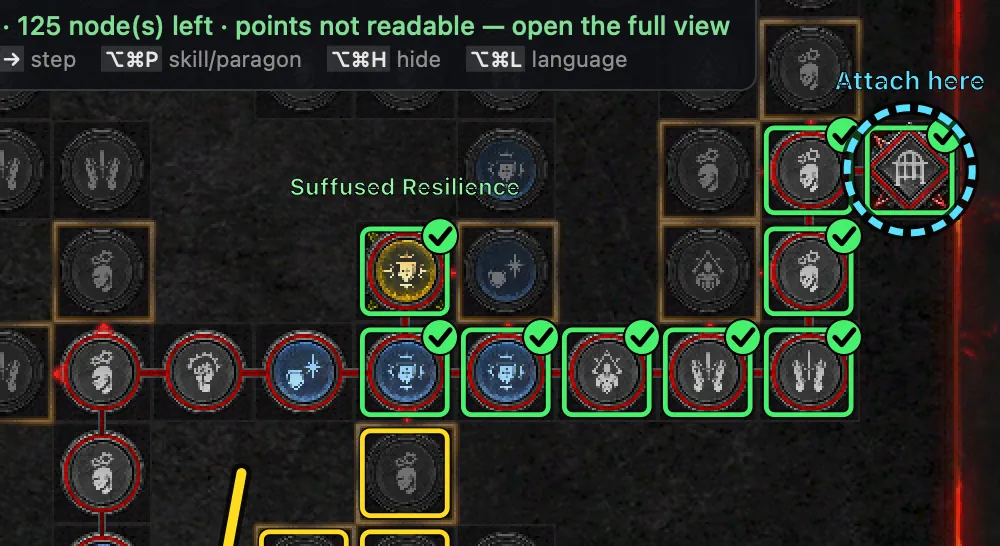
| Cyan dashed ring | Attach here: the gate where the new board goes |
| Gold arrow | Direction of an off-screen board; the panel says Board N name — off-screen → pan toward the arrow |
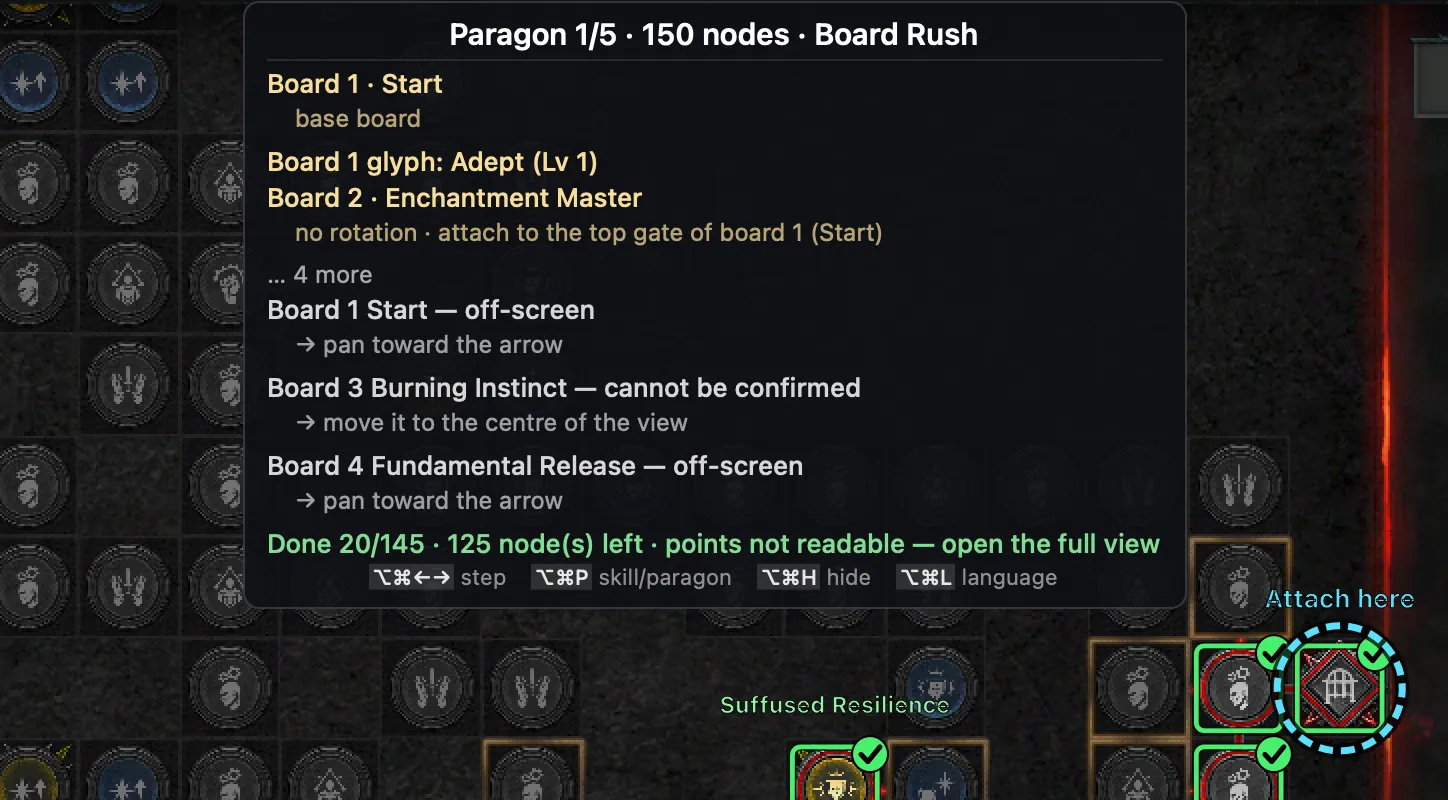
When a board on screen differs from the build, no boxes are drawn on it and the panel says why: another board there
(your layout differs from the build), rotated differently
, not placed yet
(follow the placement line) or cannot be confirmed
(move it to the centre of the view). A board that is not in the build at all adds Board(s) on screen not in this build
.
Attaching a new board
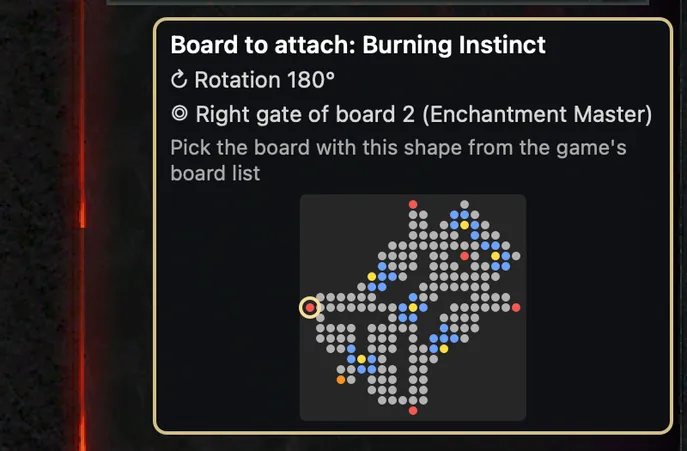
In a step that adds a board, an attach card appears near the gate. It has three lines:
Board to add: name
: the board to attach. When the app cannot confirm the place is empty, it saysBoard to attach: name
.↻ Rotation N°
: the angle the build attaches it at (clockwise).◎ Right gate of board 2 (board name)
: which side of which board. ◎ stands for the dashed ring drawn on the screen.
The dot diagram under it is the board's shape after rotation, with magic, rare and legendary nodes, gates and sockets in different colours. Pick the board with the same shape from the game's board list (the card's hint: Pick the board with this shape from the game's board list
). The gate it enters through is circled.
Board preview and its verdicts
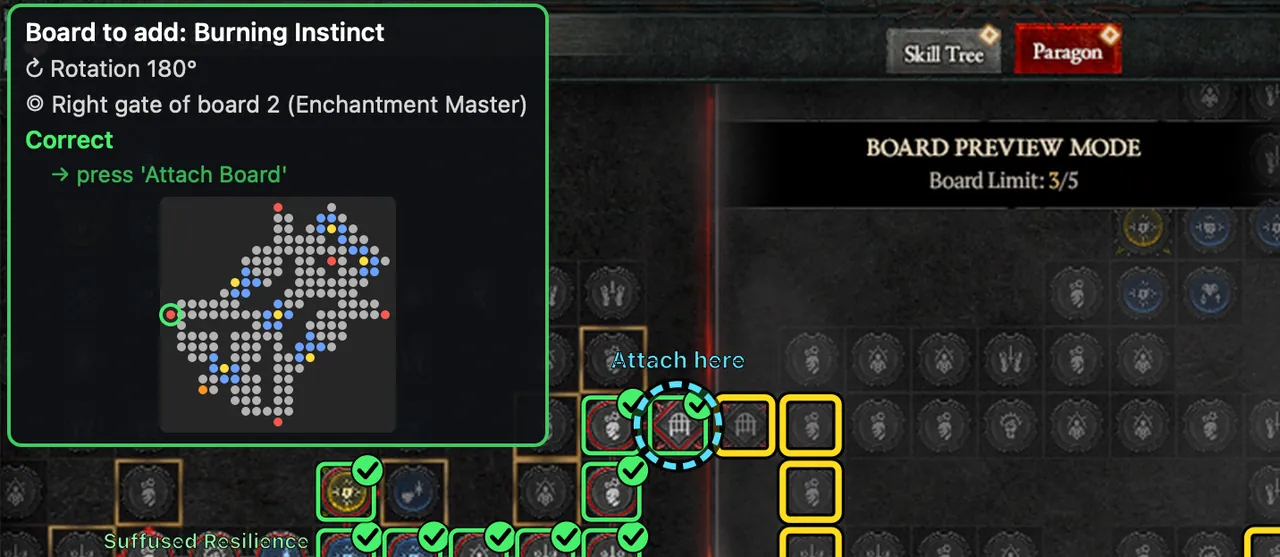
When you pick a board to attach in the game, it is placed as a fogged preview before you confirm. D4 Builder recognises the previewed board, compares it with the build and writes the verdict on the card. Boxes on a previewed board are drawn heavier so they read through the fog.
| Verdict | What to do |
|---|---|
Correct | Board, rotation and place all match. Press Attach Board. |
Right board · rotation A° → B° | Press Rotate Board the number of times shown (see the next section). |
Board and rotation are right — the attach point cannot be confirmed | Check by eye that it is the right gate, then Attach Board. |
Board and rotation are right but attached elsewhere | Press Cancel and pick it at the build's gate. |
Another board (screen: name) | Press Cancel and pick the board named on the card. |
Cannot recognize the previewed board | Pan so the whole board is visible. |
If you preview a board in a step that attaches none, the panel says Board preview · this step attaches no board
.
Counting ‘Rotate Board’ presses
Each press of the game's Rotate Board turns the board 90° clockwise. The angles D4 Builder shows use the same direction, so the number of presses is the target angle minus the current one:
(if the difference is negative, add 360° first)
| Current → target | Working | Presses |
|---|---|---|
| 0° → 90° | 90 ÷ 90 = 1 | 1 |
| 90° → 180° | 90 ÷ 90 = 1 | 1 |
| 0° → 270° | 270 ÷ 90 = 3 | 3 |
| 270° → 0° | −270 + 360 = 90 → 1 | 1 |
| 180° → 90° | −90 + 360 = 270 → 3 | 3 |
| 90° → 270° | 180 ÷ 90 = 2 | 2 |
So the answer is always between one and three presses. When the angles already match, the card moves on to checking the place instead. Going from 270° to 0° is a single press too: another 90° clockwise makes 360°, which is 0°. Build sites write rotations differently, but D4 Builder converts every site's rotation to clockwise quarter turns on import, so the same calculation works for builds from any supported site.
Glyphs
When a board has a glyph, the board instruction gets one more line: Board N glyph: name (Lv L)
. It appears only in the step that attaches the board or changes its glyph, and the level only when the build gives one.
Glyph sockets are not judged from the screen. The socket node gets a box so you can find it, but progress there is confirmed only through the points counter (N points spent
). Check in the game that the glyph is socketed.
Tips for an accurate fit
- Use the expanded view. It shows more nodes and the points counter.
- After panning or zooming, wait 0.5–1 s while the boxes re-align.
- Boxes under tooltips and popups are not drawn. Move the mouse aside and they come back.
- If you see
Board edges are ambiguous
, pan a little or zoom out. - Other messages and their fixes are in When recognition fails.