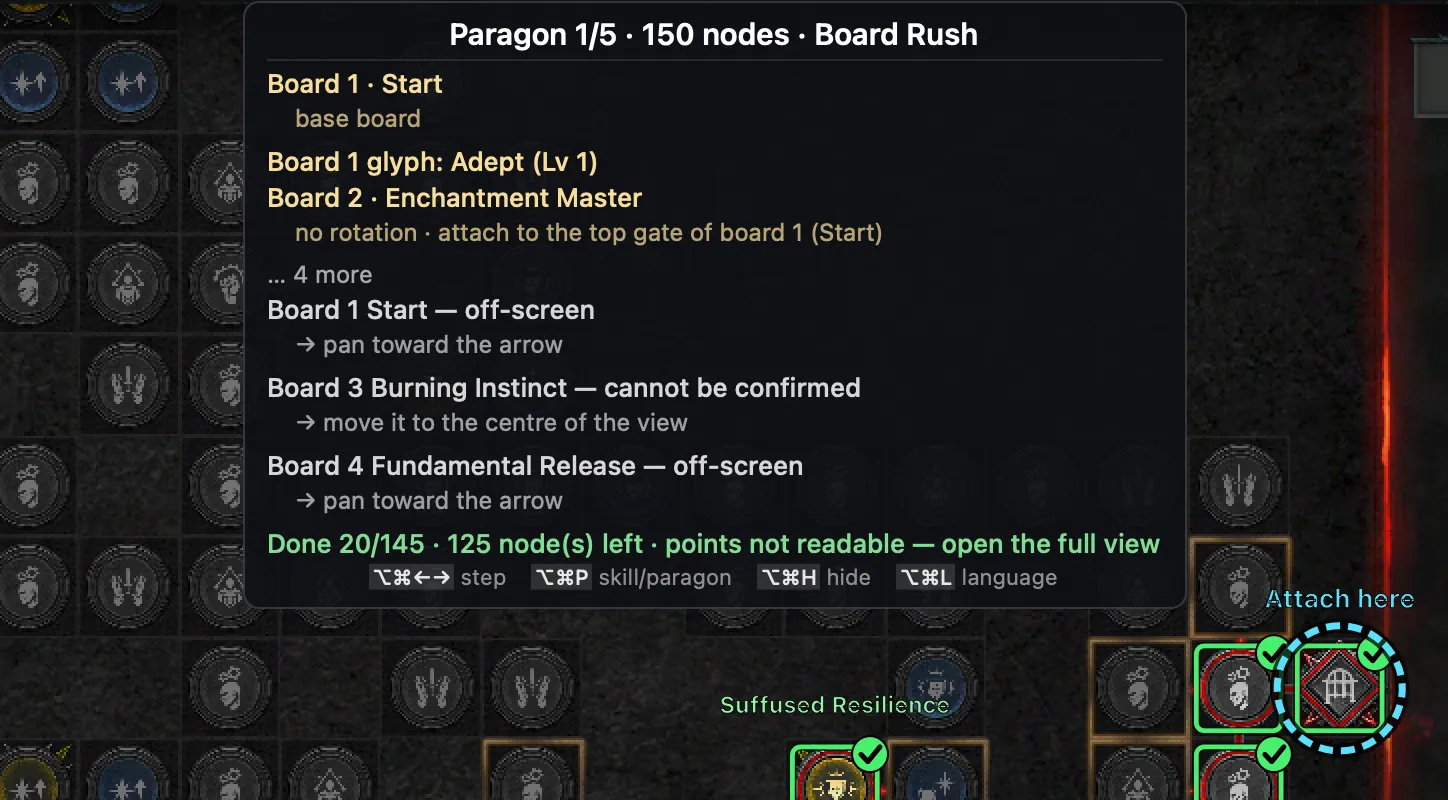
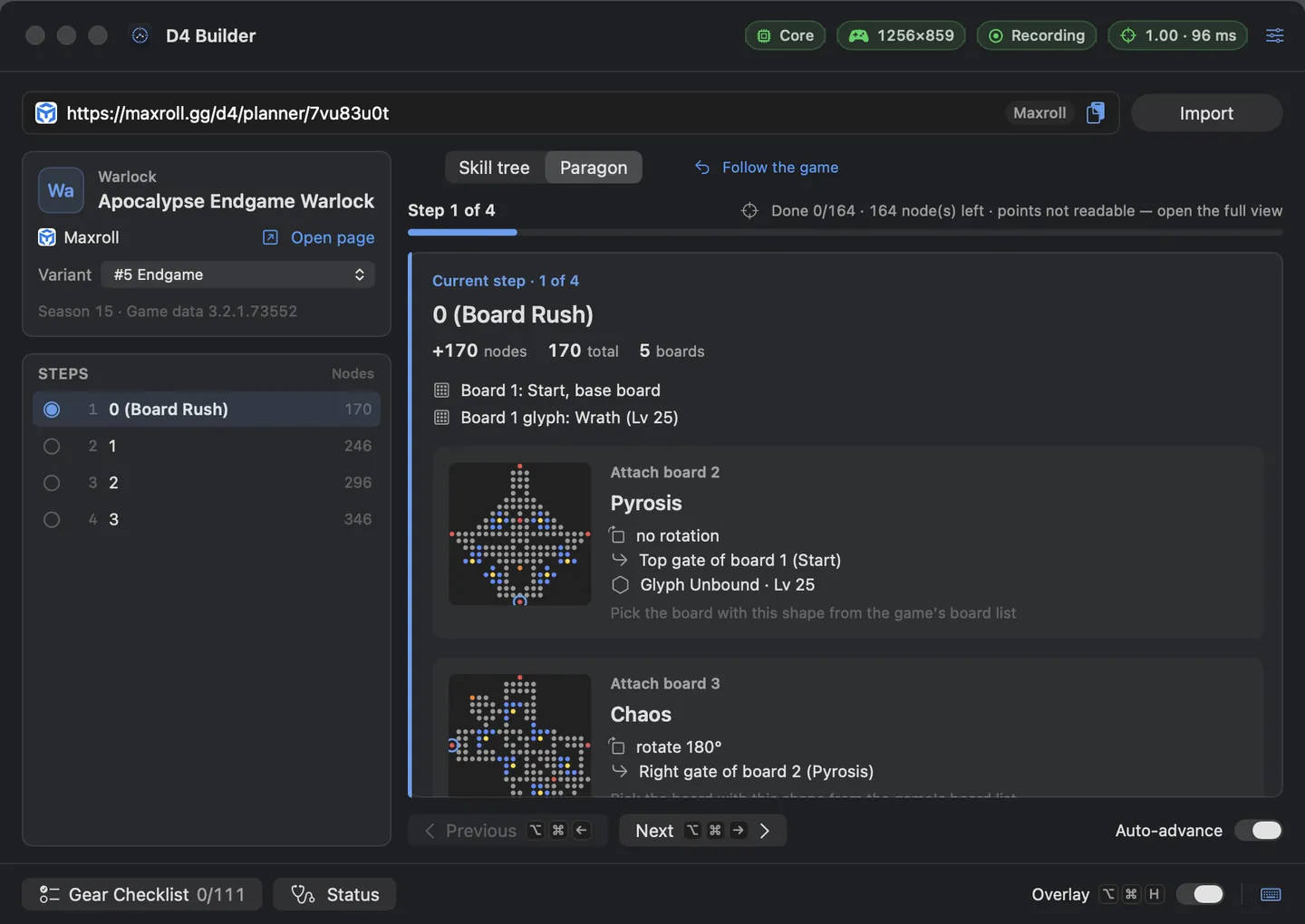
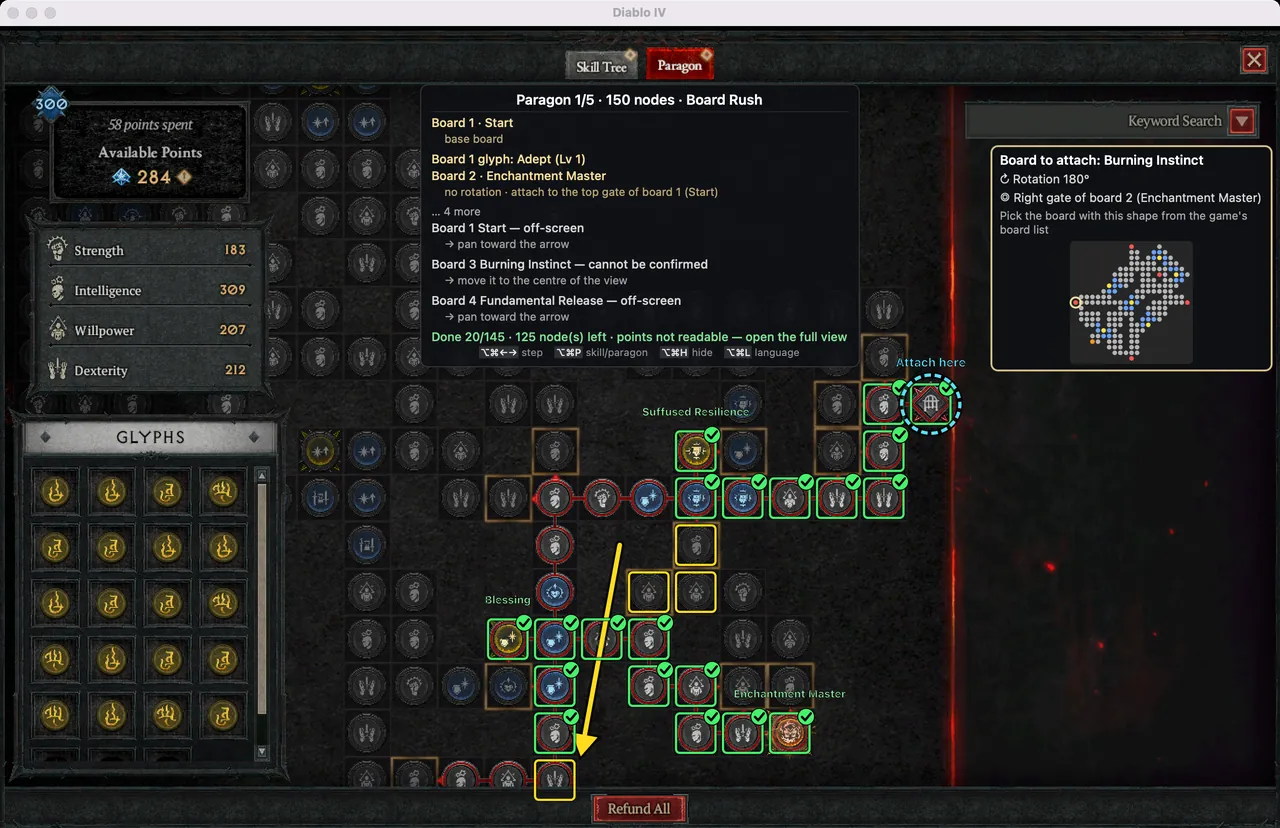
GuideResolution · language · messages · reports
When recognition fails: tips and troubleshooting for D4 Builder
If the guide does not appear or the boxes are in the wrong place, the cause is almost always the permission, windowed mode or the state of the screen. Here is the order to check things in, a fix for each message, and how to tell us when nothing helps.
First: the status chips and the status panel
The chips at the top of the app window sum up the current state. Click a chip, or open Status from the menu bar, for the details.
| Chip | OK | When something is wrong |
|---|---|---|
| Core | Core(green) | Core starting· Core stopped· Core failed— wait a moment or restart the app |
| Game window | Its size (e.g. 2048×1280) | No game window→ is the game running? · Fullscreen→ switch to windowed |
| Screen recording | Recording | Allow Screen Recording→ turn the permission on |
| Recognition | Confidence and time (e.g. 0.85 · 120 ms) | Not located· Locate error→ see the message table below |
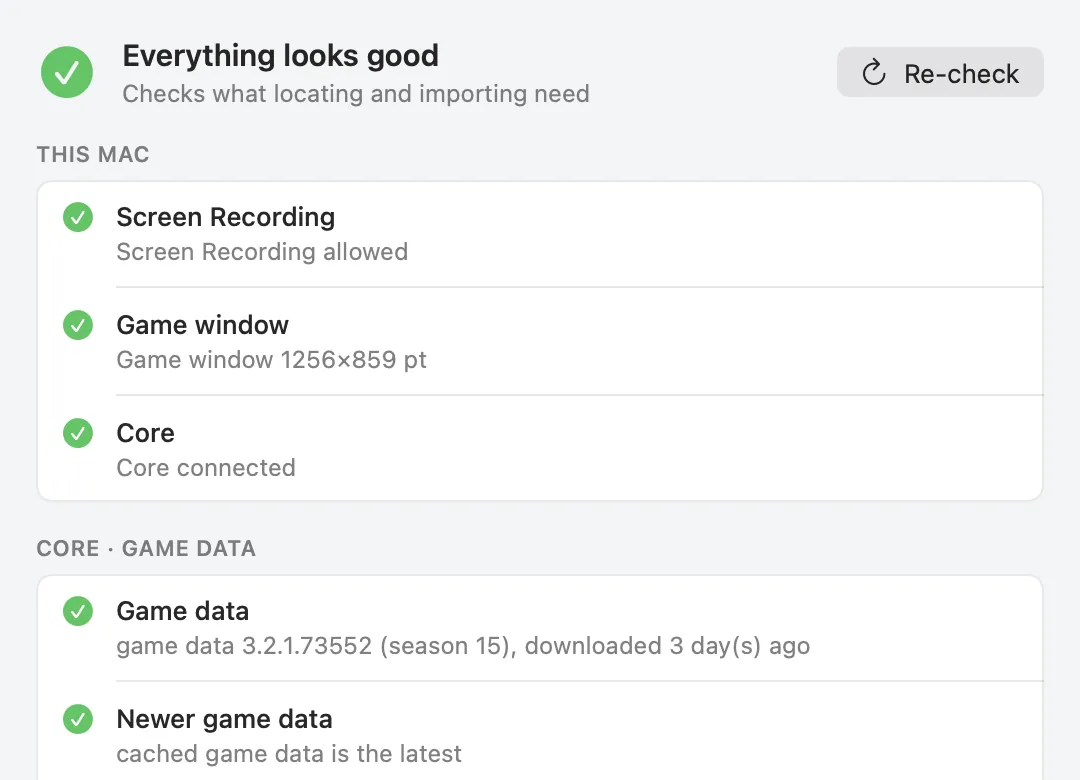
The status panel checks the game data too. If the imported build is newer than the game data stored by the app, it warns The build is newer than the cached game data
; press Refresh Game Data to download it again and re-import the build.
Windowed mode and window size
D4 Builder can only show its guide in windowed mode: macOS fullscreen is a separate Space and nothing can be drawn over it. In fullscreen the app says The game is in macOS fullscreen, where overlays cannot show
. Set Options › Graphics › Display Mode to Windowed and make the window as large as you like. On Windows, borderless windowed works too; only exclusive fullscreen is not supported (Windows display modes).
- Bigger windows are more accurate. Larger nodes are easier to fit.
- Small windows and letterboxing are fine. Black bars above, below or beside the picture are cut off before recognition.
- The game window is found by its program name,
Diablo IV.exe; the window title changes with the game language and does not matter. If it is not found, the chip saysGame window not found (Diablo IV.exe)
.
Retina, resolution and UI size
Retina (2x) and standard (1x) displays both work. The app accounts for the display scale when it computes positions, and the core scales the picture to a reference window height before recognising it, so different resolutions go through the same path.
- CrossOver's High Resolution Mode on versus off has not been verified separately yet. If recognition is unstable, try the other setting and tell us the result through feedback.
- A changed in-game UI size is not on the verified list either. If recognition keeps failing, try the default.
- The app captures at most two frames per second while the screen changes, and checks less often when it does not.
Game language: Korean and English
You do not set the game client language anywhere. The points counter is looked for in Korean (N포인트 사용함
) first and in English (N points spent
) next. The tree and the boards are recognised by their shapes, which do not depend on the language.
The skill, node and board names in the guide come from the game data in both Korean and English. Switch the overlay language with ⌥⌘L or in the app settings; it does not have to match the game.
If even one digit of the counter is uncertain, the counter counts as unread. When the counter cannot be read the panel says points not readable
, while the node checks keep working.
A fix for every message
| Message | Fix |
|---|---|
No skill tree visible | Open the Skill Tree tab of the abilities screen. |
The Paragon tab is open | Open the Skill Tree tab, or press ⌥⌘P for the Paragon guide. |
Nodes are covered | Move tooltips or popups away (move the mouse aside). |
Too few nodes visible | Zoom out, or move the tooltip away. |
Ambiguous position | Pan the tree a little. |
Fit error too large | The app is re-aligning; wait a moment. |
No paragon board recognized | Move tooltips away or bring a board into view. |
Board edges are ambiguous | Pan a little or zoom out. |
Cannot match the screen to the build | Show the start board or a board of the build. |
Core disconnected — restarting | It restarts by itself; if it keeps happening, restart the app. |
No message but no boxes? The overlay may be off: press ⌥⌘H or turn on Show overlay in the app. The overlay also needs an app connection key.
Still stuck: report an error or send feedback
If importing a build failed, press Report this error next to the error. The sheet shows exactly what will be sent, and nothing is sent until you press Send: app version, macOS / Windows version, build site, parser version, error code, error message (home folder path removed, up to 500 characters), core version and the build link (only when it is an https page of a supported site), plus the connection key if the app is linked to an account. No screens, files or logs; reports are deleted after 180 days.
For recognition problems or ideas, use Send Feedback… in the menu bar, the app settings, or feedback on the account page:
- Type (bug · feature idea · question), title (up to 120 characters) and details (up to 4,000)
- Diagnostics (always sent, shown in the window before you send): app and core version, macOS / Windows version, the last import error code and the build site name only. No game screens, files or logs
- Allow contact about this feedback (optional)
Mention the window size, whether the display is Retina, the game language and which view you were on (side panel or expanded view); it makes the cause much easier to find. With a linked app, Sent feedback shows the status and our replies. The build-site status in the app settings warns in advance about sites whose imports currently have problems.