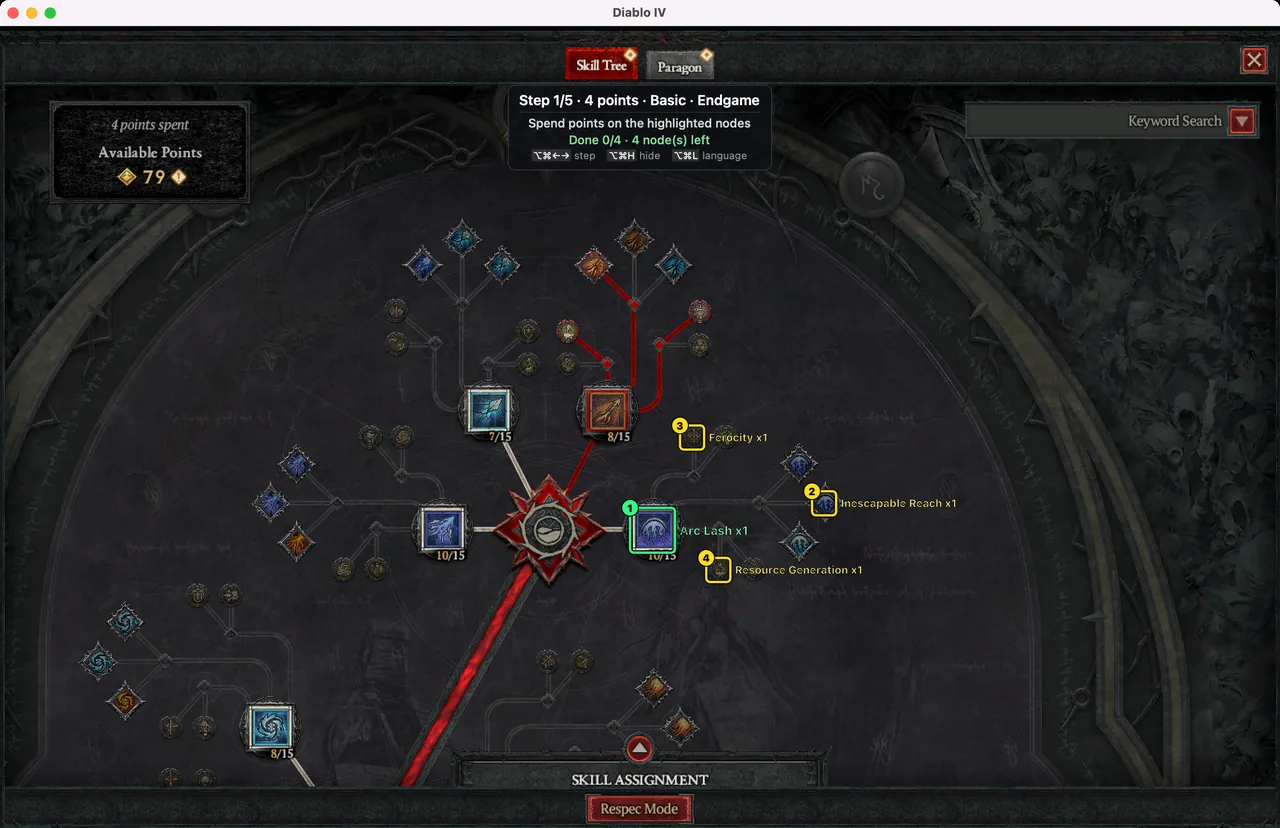
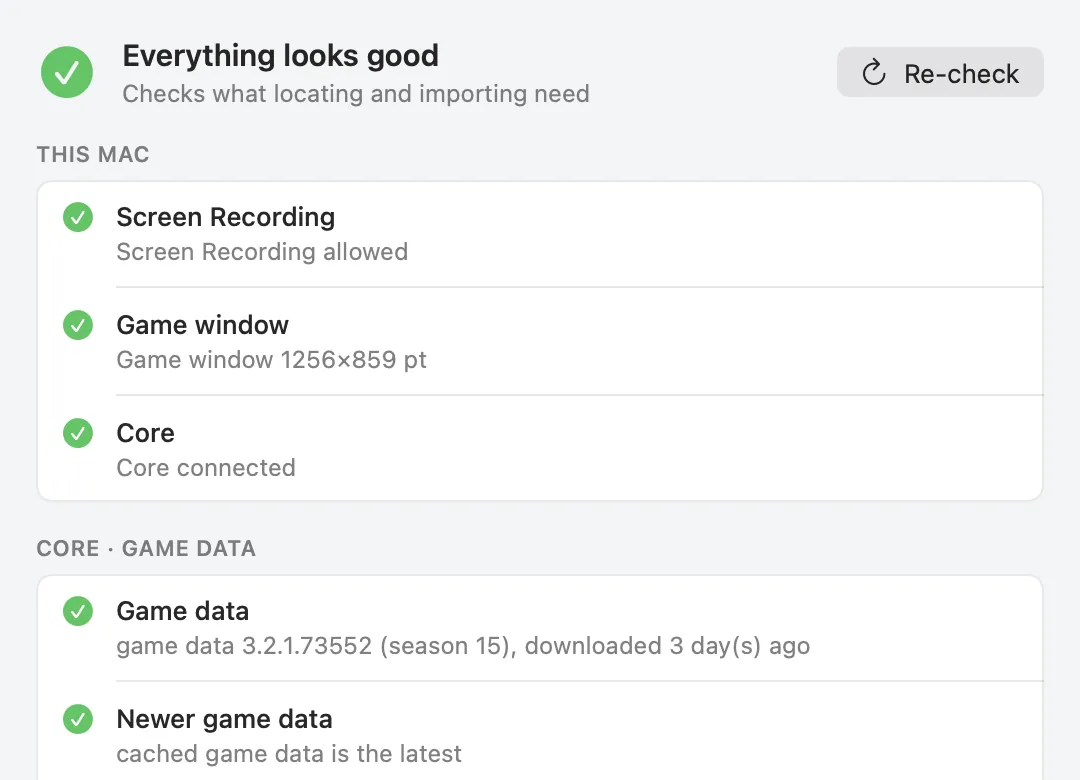
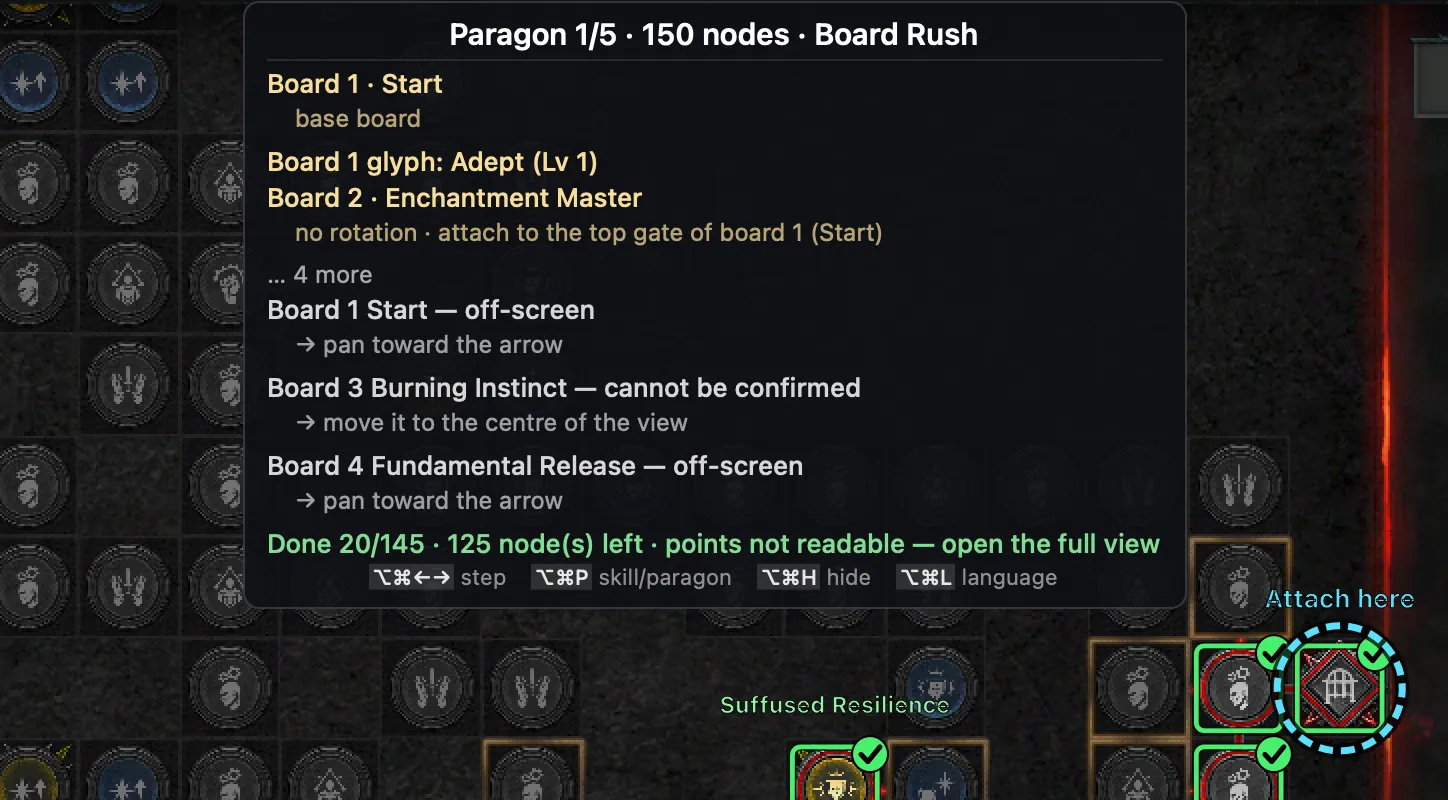
GuideWindows · install · display mode · hotkeys
Getting started with D4 Builder on Windows: install, display mode, hotkeys
D4 Builder for Windows brings the same app window, in-game guide and hotkeys as the Mac version to Windows. This guide walks through everything from the download to seeing the first guide over the game.
The official Windows version is out. Get the installer from Download.
What you need
Check these before you start. The game's display mode matters most: in the wrong mode the guide cannot appear at all.
| Item | Requirement |
|---|---|
| Windows | Windows 10 version 1903 or later, or Windows 11, 64-bit (x64). ARM64 PCs are not supported. |
| Game | Diablo IV in Windowed (Fullscreen), also called borderless windowed, or in Windowed mode. Exclusive Fullscreen is not supported. |
| Permissions | No administrator rights and no screen capture permission to turn on. |
| Account | The in-game overlay needs an app connection key made on the account page, just like on the Mac. |
The app reads the game screen with the standard Windows screen capture, Windows Graphics Capture, and only captures the game window. On a PC where that does not work it switches by itself to another standard Windows capture method. Either way it never touches the game process: no memory access, no injected code, no hooks and no synthetic input.
Installing and the “Windows protected your PC” warning
The installer from Download is the usual choice; the GitHub release also has a zip. Both contain the same app. The installer also adds a Start menu shortcut and an uninstaller; it installs for your Windows user only, so it never asks for administrator rights. The zip runs straight from the folder you extract it to, with nothing installed.
The app is not code-signed yet, so the first time you run it Windows SmartScreen shows a blue Windows protected your PC
window. This is expected for a new, unsigned program and does not mean anything was found in the file.
- In the blue window, click More info.
- Click the Run anyway button that appears below the app name.
- The installer first asks for its language (English / 한국어). The app starts in that language; you can change it later in the app's settings.
- Finish the setup steps and start D4 Builder from the Start menu.
You may see this check once for every new version. If your antivirus blocks the file, please do not add an exception on your own; tell us through feedback instead so we can look into it. To confirm the download is the file we published, compare the SHA-256 value on the release with the output of PowerShell's Get-FileHash.
To remove the app, uninstall D4 Builder in Windows Settings › Apps if you used the installer, or delete the folder if you used the zip. Settings and logs stay in %LOCALAPPDATA%\D4Builder; delete that folder too if you want nothing left behind.
Borderless windowed vs. windowed
Change the display mode in the game under Options › Graphics › Display Mode. The exact labels can differ a little between client versions.
| Display mode | D4 Builder |
|---|---|
| Windowed (Fullscreen) | Recommended. A borderless window that fills the screen: it looks like fullscreen, and the guide can still be drawn on top of it. |
| Windowed | Supported. A normal window with a title bar. Move or resize it and the guide follows. |
| Fullscreen | Not supported. The game takes over the display, and no other window can be shown above it. |
When the game runs in exclusive fullscreen, D4 Builder notices, hides the in-game guide and tells you, in the app window and with a tray notification, to switch to Windowed (Fullscreen). As soon as you switch, the guide comes back. Recognition is more accurate in a bigger window, so if you play windowed, keep the window reasonably large.
The tray icon and your account key
Instead of the Mac's menu bar, the Windows version lives in the notification area (system tray) at the bottom right of the taskbar. If no big window shows up after you start it, look there. When the icon is hidden, click ^ (show hidden icons); drag it onto the taskbar to keep it visible. Click the icon to open the app window.
- On the account page, sign in with Google, Battle.net or an email sign-in link, then press Start using D4 Builder.
- Create an app connection key. The full key is shown only once, so copy it right away.
- Paste it into the app under Settings › Account. The key starts with
d4b_.
The key is stored encrypted with Windows DPAPI, so only your Windows user can read it. Unlike on the Mac, there is no screen capture permission to grant. Once the key is in, paste a build link and press Import to get the step list, then open the skill tree or the Paragon board in the game and the guide appears over it. Link formats and how to read the steps are the same as on the Mac, so Importing a build link and Reading the skill tree guide apply as they are.
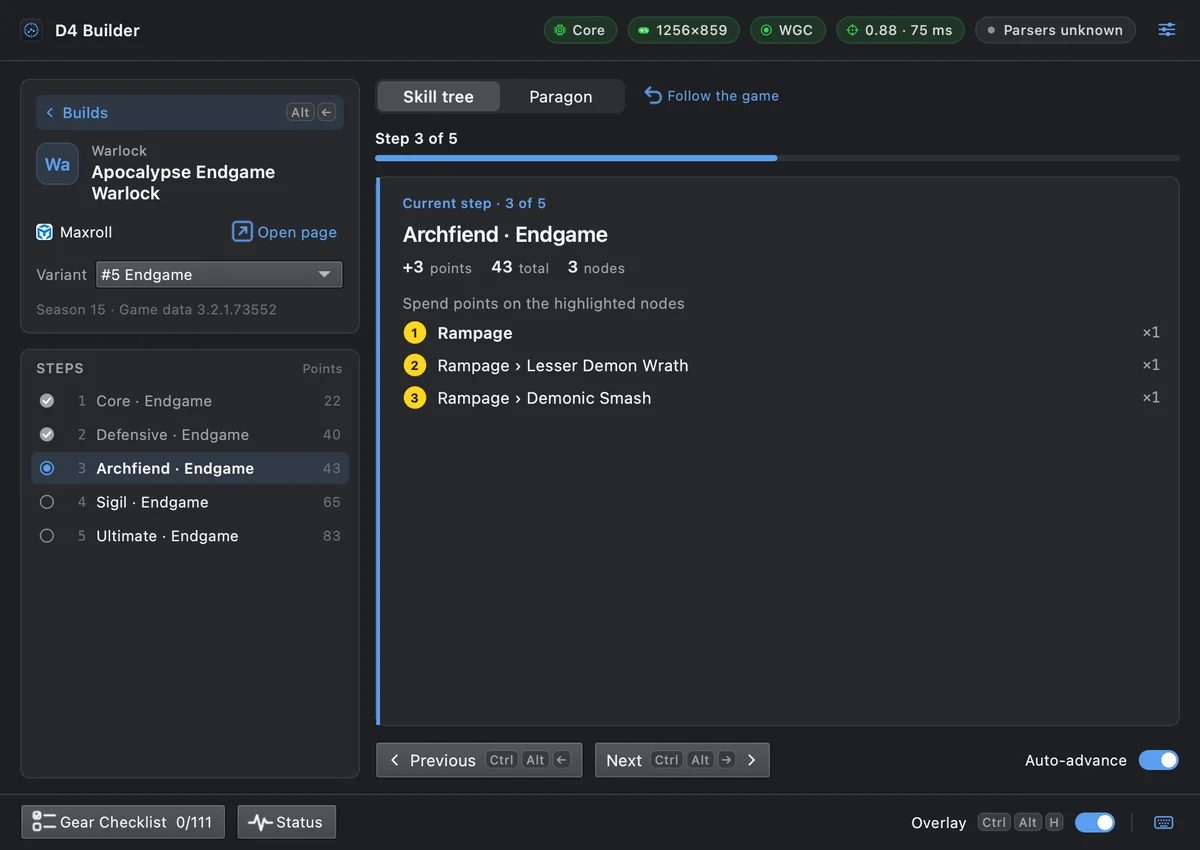
Hotkeys
Where the Mac uses ⌥⌘, Windows uses Ctrl+Alt. The hotkeys work while the game window is in front.
| Hotkey | Action |
|---|---|
| Ctrl+Alt+→ · ← | Next · previous step |
| Ctrl+Alt+P | Switch between the skill tree and Paragon guide |
| Ctrl+Alt+H | Hide · show the overlay |
| Ctrl+Alt+L | Guide language Korean / English |
If another program already uses one of these combinations, that hotkey will not work in D4 Builder. A common example is the screen rotation shortcut of some graphics drivers (Ctrl+Alt+arrow keys). The previous and next buttons in the app window do the same thing in the meantime.
When the guide does not show
- Display mode: in exclusive fullscreen there is no guide. Switch to Windowed (Fullscreen).
- Game window: make sure Diablo IV is running and not minimised. The guide hides on purpose while another window is in front and comes back when you return to the game.
- Account key: without a key, or with a revoked one, the in-game overlay stays off. Create a new key on the account page and paste it in.
- Recognition: problems caused by window size, language or what is on screen behave just like on the Mac, so the tips in When recognition fails apply.
- The app seems missing: check the hidden tray icons. If it never started, go through More info → Run anyway in the SmartScreen window again.
If none of this helps, use Send Feedback in the app or the feedback form on the account page. For build import errors, use Report this error in the app. Logs are written to %LOCALAPPDATA%\D4Builder and never sent automatically. What leaves your PC, and when, is listed in Safety and privacy.