GuideSteps · counter · auto-advance
Reading the skill tree guide: steps, the points counter and box colours
The skill tree guide splits a build's skill order into small steps and marks only the nodes of the current step, at their exact place on the game screen. This article explains the steps, the marks, and when the app decides a step is done.
How steps are made
When the build site lists the skill order in several steps, D4 Builder uses those steps. Each step shows only the nodes that change from the step before. A build with just a final layout is split into one page per section of the tree, titled like section · step name
.
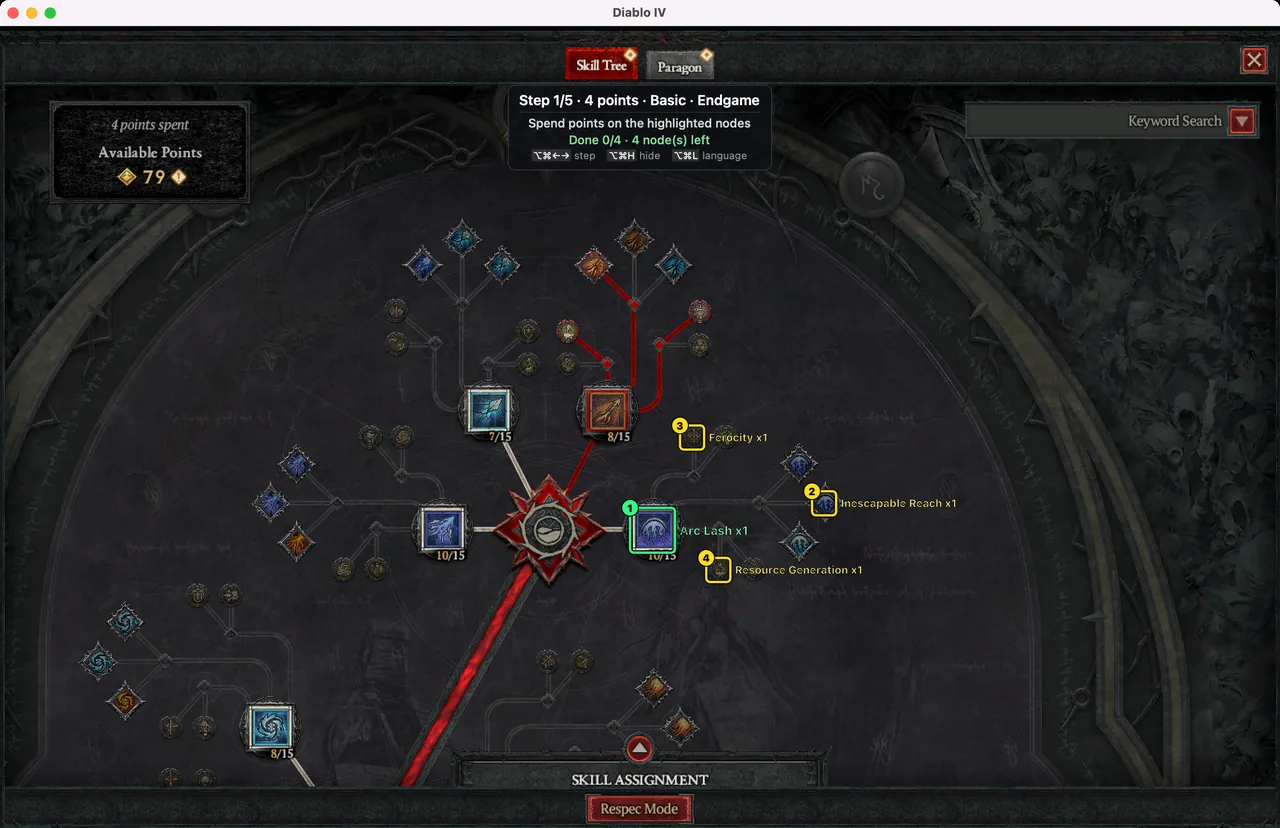
Step 3/11 · 12 points
at the top of the panel means the third of eleven steps, after which 12 points are spent in total. The numbers next to the boxes are the order to take them: refunds first, then the tree order. A step without node changes says No node changes in this step
.
Boxes, labels and colours
| Mark | Meaning |
|---|---|
| Bright green box | A new skill node to take in this step (with a slightly larger label) |
| Yellow box | An upgrade or passive node to take in this step |
| Red box + ✕ | A node to refund |
| Green + check, top right | A node recognised as taken; its label turns green too |
A label shows the rank at the end of the step, like name x3
. When a node already had points, the increase is added in brackets, name x3 (+1)
; a refund names the rank to keep, Refund: name → 0
.
Panel text colours follow a rule too: orange for warnings (such as a failed locate), pale yellow for things to do (Paragon board instructions, the skip-ahead suggestion) and green for progress. Off-screen and hidden-node notes use the normal text colour.
The points counter and auto-advance
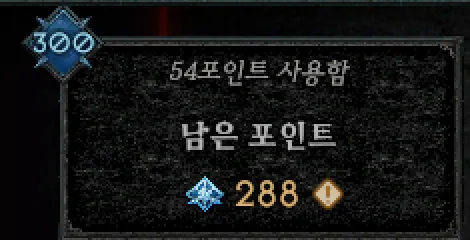
The top left of the expanded view has a counter, 83 points spent
(83포인트 사용함
on a Korean client). D4 Builder looks at the nodes and this number together to decide whether a step is done.
- Nodes: new skills and upgrades must be seen lit, refunds unlit.
- Counter: when it can be read, it must equal the step's cumulative points.
- Twice in a row: two confident frames in a row must show the step done, and the step must have been seen not done once. Opening an already finished tree therefore does not jump through the steps.
When that holds, a sound (Glass) plays and the next step comes up (Auto-advance, which you can turn off in the app). The progress line reads Done 2/5 · 3 node(s) left · points 83/85
and becomes ✓ Step done
at the end. Points in nodes the build does not use show up as points 83/85 (1 wrong)
.
A node whose rank goes up from an existing rank cannot be judged from the picture (the in-game rank number includes item bonuses), so it is confirmed by the counter only. If the counter cannot be read, the panel says points not readable — open the full view
and the step does not advance. When the app is not sure, it waits instead of guessing.
If later steps already look done after an import, the app offers once: Steps up to 5 look done already → ⌥⌘→ to skip ahead
.
Off-screen and hidden nodes
A node that is off-screen, or covered by the game's UI (tooltips, popups, the skill bar at the bottom), is not drawn; the panel counts it instead:
N node(s) off-screen → pan or zoom out the tree
N node(s) hidden under UI → close the popup or pan the tree
Drag the section into view
: on a section page when more than half of that section is off-screen, with a gold arrow from the centre of the view toward it.
After panning or zooming, the boxes re-align within 0.5–1 s. Hovering a node opens a tooltip that hides the boxes under it, so move the mouse aside once you have read it.
Expanded view or side panel
The game shows the skill tree in the side panel next to the character and in the expanded view (the ◀ button on the panel). Both are recognised, with differences:
| Side panel | Expanded view | |
|---|---|---|
| Visible nodes | Few | Many (with zoom levels) |
| Points counter | None, so steps confirmed by the counter only do not advance | Yes |
| Use it for | A quick look | Spending points |
The mouse-and-keyboard UI and the controller UI lay the tree out the same way, and both are recognised.
Moving between steps yourself
Even with Auto-advance on, you can move between steps at any time: ⌥⌘← ⌥⌘→ for the previous and next step, ⌥⌘H to hide the overlay and ⌥⌘L to switch the label language. The Paragon guide is ⌥⌘P, continued in the Paragon board guide.