GuideInstall · permission · import a build
Getting started with D4 Builder on Mac: from install to your first overlay
D4 Builder is a macOS app: paste a link from a build site and it marks the skills and Paragon nodes to take in this step, right on top of the Diablo IV window. This article walks you from the install to the first guide on screen. On Windows, see Getting started on Windows.
What you need
Check these first. If one is missing, the guide does not appear or cannot line up with the game.
| Item | Requirement |
|---|---|
| macOS | 14 Sonoma or later. The game is read with the standard macOS capture (ScreenCaptureKit). |
| Mac | Apple Silicon. The app we ship today is built for Apple Silicon (arm64). |
| Game | Diablo IV running through CrossOver, in windowed mode. A large window is fine; macOS fullscreen is not. |
| Permission | Screen Recording (System Settings › Privacy & Security). |
| Account | The overlay over the game needs an app connection key from the account page. Importing builds and reading the steps work without one. |
Fullscreen does not work because macOS fullscreen is a separate Space, and no other app's window can be shown on top of it. If you switch the game to fullscreen, D4 Builder says Fullscreen detected — switch to windowed mode
. Set Options › Graphics › Display Mode to Windowed and make the window as large as you like.
Download and first launch
Get the app from the download section of the home page or from GitHub releases. Open the dmg, drag D4 Builder into Applications, eject the dmg and start the app from Applications.
D4 Builder is a self-signed app that is not notarized by Apple, so macOS asks twice on the first launch:
- When the “cannot be verified” dialog appears, press Done (do not move it to the Bin).
- Open System Settings › Privacy & Security, press Open Anyway next to “D4 Builder was blocked” near the bottom, and confirm with your password or Touch ID.
- Open the app again and press Open Anyway once more.
You do this once per new version. On macOS 14 you can also Control-click the app in Finder and choose Open. To verify the download, compare shasum -a 256 with the .sha256 file published with the release.
D4 Builder is a menu bar app with no Dock icon. After launching it, click its icon in the menu bar to open the window.
Allow Screen Recording
D4 Builder reads the pixels of the game window to find the skill tree and the Paragon boards. It uses the same standard macOS capture as OBS or Discord screen sharing, which needs the Screen Recording permission.
- When the app shows
Screen Recording permission needed
, press Request or Open Settings. - In System Settings › Privacy & Security › Screen & System Audio Recording, turn on D4 Builder.
- Quit the app completely and open it again; the permission applies after a restart.
Until then the status chip at the top of the window reads Allow Screen Recording
and the overlay says Screen Recording permission missing — cannot locate the tree
. Updates signed with the same certificate keep the permission. What the captures are used for, and where they never go, is covered in Safety and privacy.
Connect your app key
The overlay that draws boxes over the game is enabled for an app linked to a site account. You link it once.
- On the account page, sign in with Google, Battle.net or an email sign-in link, agree, and press Start using D4 Builder.
- Create an app connection key. The key is shown only once in a dialog, so copy it right away.
- Paste it into the app's Settings › Account. Keys start with
d4b_.
The app checks the key at launch and every 24 hours, and keeps working for 7 days without an internet connection. If you revoked or lost a key, create a new one on the account page and paste it again.
Import a build link
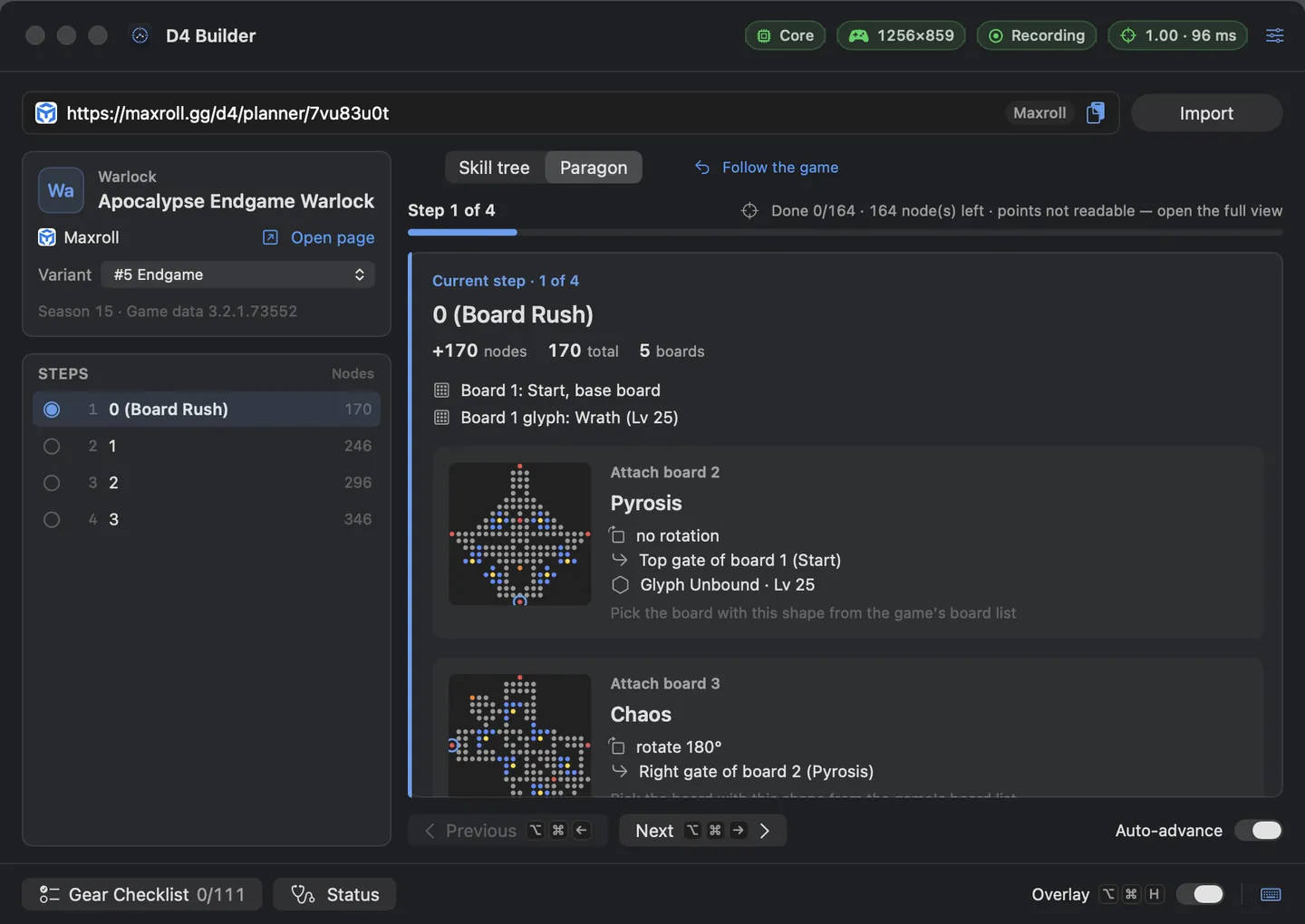
Paste a build address into the link field at the top of the app window (the clipboard button next to it works too), then press Import or ⌘↩. Supported sites and link forms:
| Site | Links you can paste |
|---|---|
| Maxroll | Planner maxroll.gg/d4/planner/… or build guide maxroll.gg/d4/build-guides/… (its embedded planner is used) |
| Mobalytics | mobalytics.gg/diablo-4/builds/… or …/profile/author/builds/… |
| D4Builds | d4builds.gg/builds/… |
| InfinityBuilds | infinitybuilds.gg/locale/builds/… |
| D2Core | d2core.com/d4/planner?bd=… |
The import turns the skill order and the Paragon boards and nodes into steps, and the gear into a checklist. Skill and node names come from the game data, in Korean and English. If the build has several variants, pick one in the Variant menu; builds you imported before are one click away under Recent builds. Not sure which build to play? Copy a link from Top builds.
If an import fails, the window shows the error with Status and Report this error buttons. What a report contains is listed in Troubleshooting.
Your first guide over the game
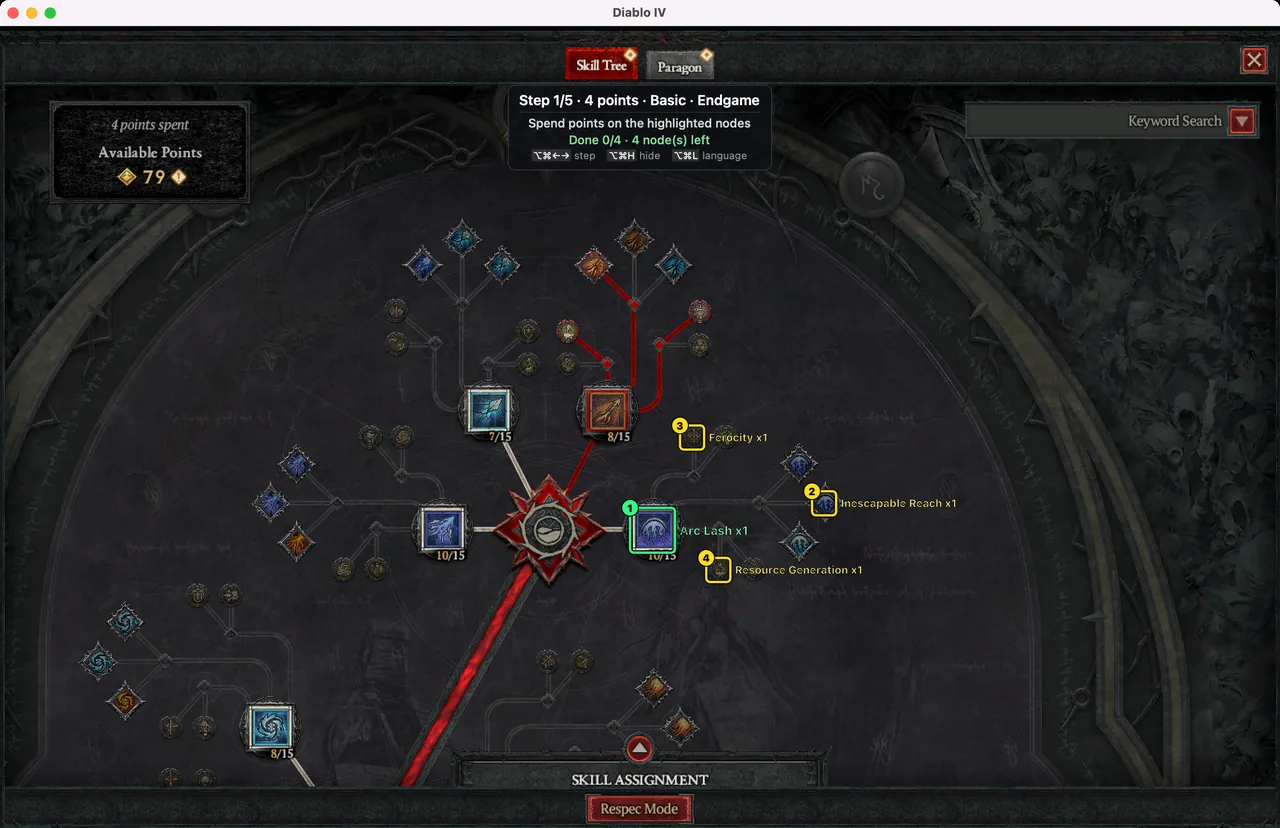
Run the game windowed and open the Skill Tree tab of the abilities screen. Once D4 Builder has located the tree, the nodes to take in this step get boxes and name labels, and the panel at the top shows the progress, for example Step 1/11 · 4 points
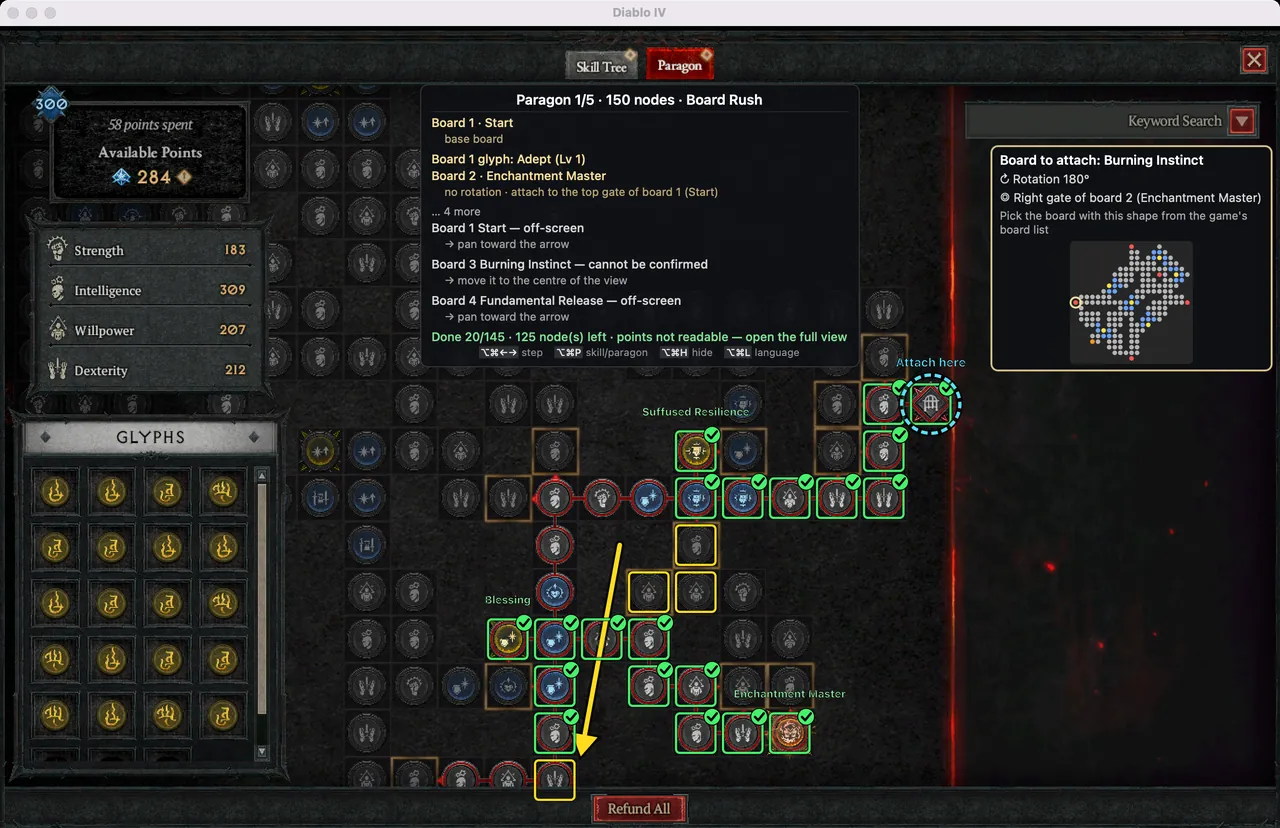
. Switch to the Paragon guide with ⌥⌘P. The expanded view (the ◀ button on the left of the panel) is more accurate than the small panel next to the character, and only the expanded view has the points counter.
| Shortcut | Action |
|---|---|
| ⌥⌘← ⌥⌘→ | Previous · next step (⌥⌘→ also accepts a skip-ahead suggestion) |
| ⌥⌘P | Switch between the skill tree and Paragon guides |
| ⌥⌘H | Hide · show the overlay |
| ⌥⌘L | Guide language Korean / English |
| ⌘[ | Back to the build list (while the app window is in front); the step position and gear checks are kept |
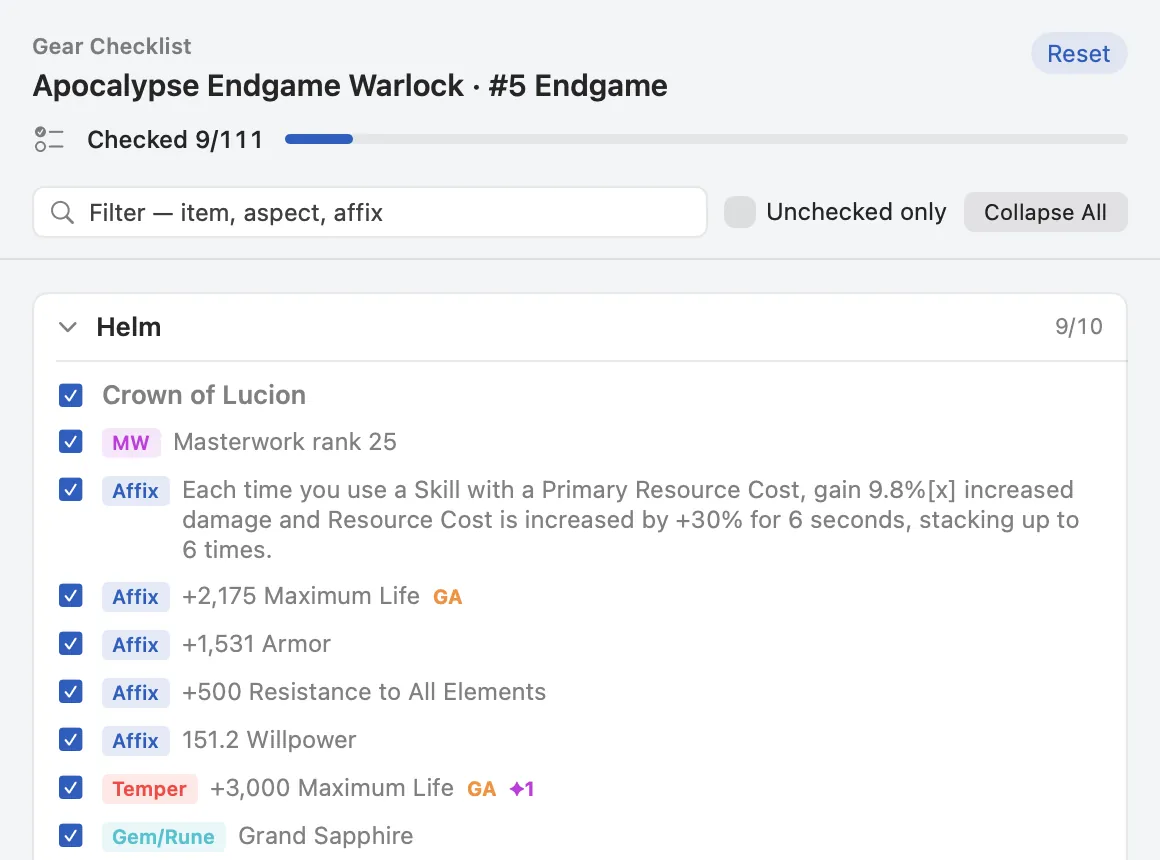
The ⌥⌘ shortcuts work while the game is in front. When you take the nodes yourself, the app checks the screen and moves to the next step (Auto-advance, on by default). The rules are in Reading the skill tree guide and the Paragon board guide. Gear is not drawn over the game; it has its own gear checklist window, slot by slot.
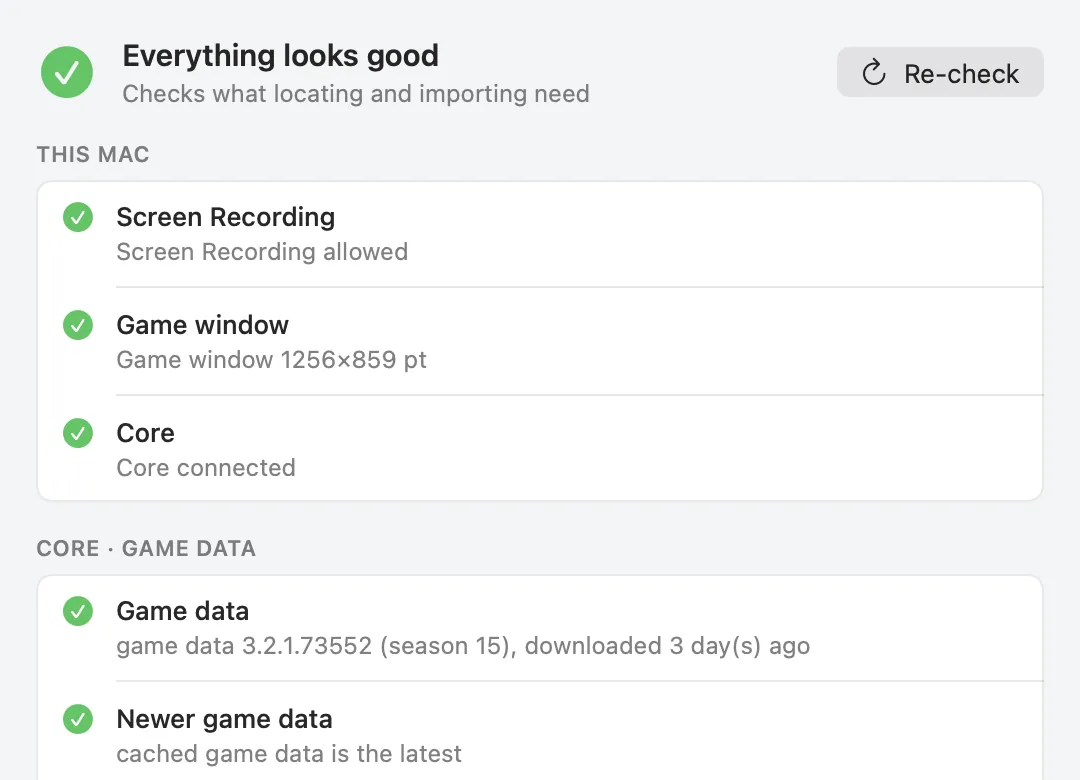
If nothing appears, open Status from the menu bar. It checks the Screen Recording permission, the game window, the core and the game data in one place.